6 min readWHMCS
When we introduced VPS Manager we were describing a target, not a product. One set of records covering the servers you actually have and the services you have sold, instead of two lists somebody reconciles on a Friday afternoon. We also said we would not publish a feature list for software that was still being written.
That second part still holds. What has changed is that there is now enough working software to show. This update is mostly screenshots.
Read them for what they are. Every image below comes from a development build running against real provider infrastructure. VPS Manager is not released, not for sale, and not finished. Server names, hostnames, IP addresses, provider resource IDs and client names are masked throughout, because these are live machines and a real WHMCS client record.
From concept to a working inventory
VPS Manager starts by asking the provider what exists. It reads the account, discovers every VPS in it, and pulls the offering, location and resource shape for each one. The result is an inventory the provider itself agrees with.
Two things then happen without being asked. It works out the technical topology, mapping each machine to a capacity pool derived from its offering and its data center. A VPS 8 in Nuremberg and a VPS 8 in Manassas are different capacity, and it treats them that way. It also reconciles what it found against WHMCS, matching discovered machines to existing active services instead of assuming every server is new.
Each resource then carries a business purpose. Customer capacity is separated from development capacity and from capacity that is free to sell. That classification is what decides which machines automation is allowed to touch.
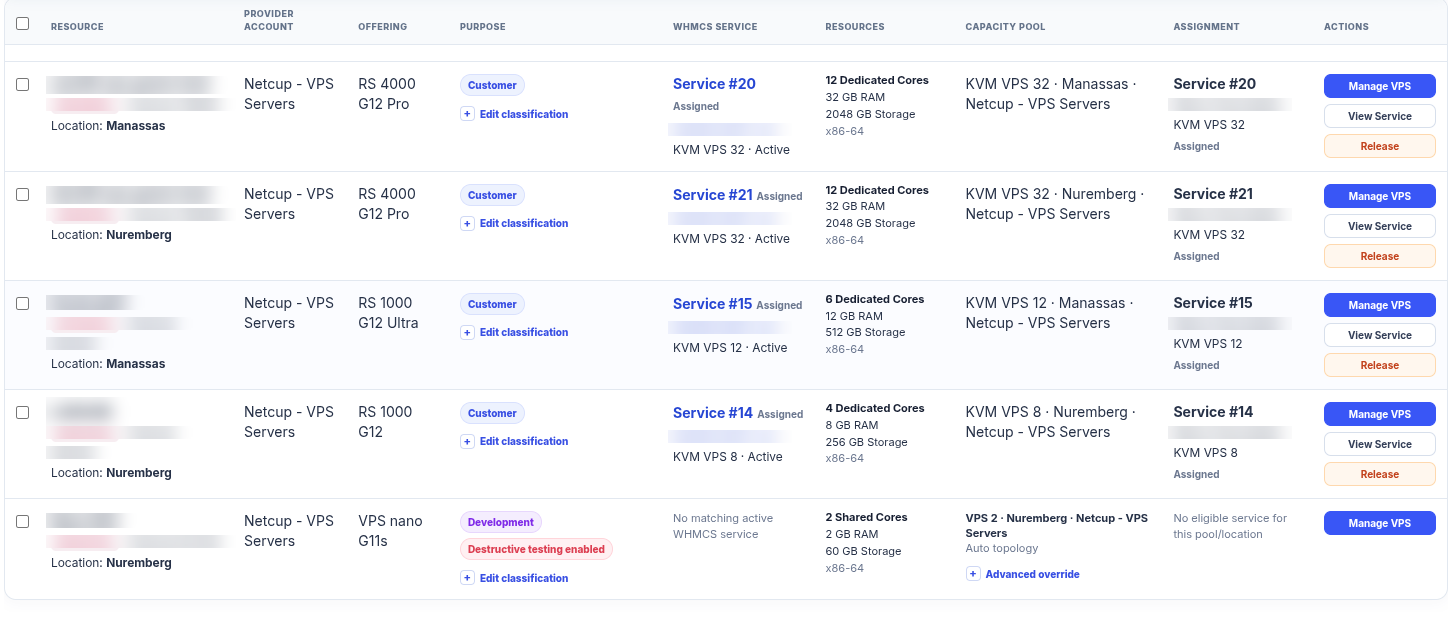
The Infrastructure Registry. Discovered resources on the left, the WHMCS service each one is assigned to in the middle, and the capacity pool it was automatically placed in on the right. The last row is the interesting one: a machine classified for development, with no matching active WHMCS service and no eligible service for its pool and location, so nothing is silently attached to it. Resource names and provider IDs are masked.
Reconciliation took the longest to get right and matters the most. Assigning a service to a server is easy. Working out which of fifty existing servers already belongs to which of fifty existing services, without guessing, is the problem that makes people give up and keep the spreadsheet.
Managing a VPS from inside WHMCS
Once a resource is in the registry it can be managed from WHMCS directly. Power state, allocated CPU, memory, storage and uplink are read from the provider each time the page loads, so the figures describe the machine as it is now and not as it was sold.
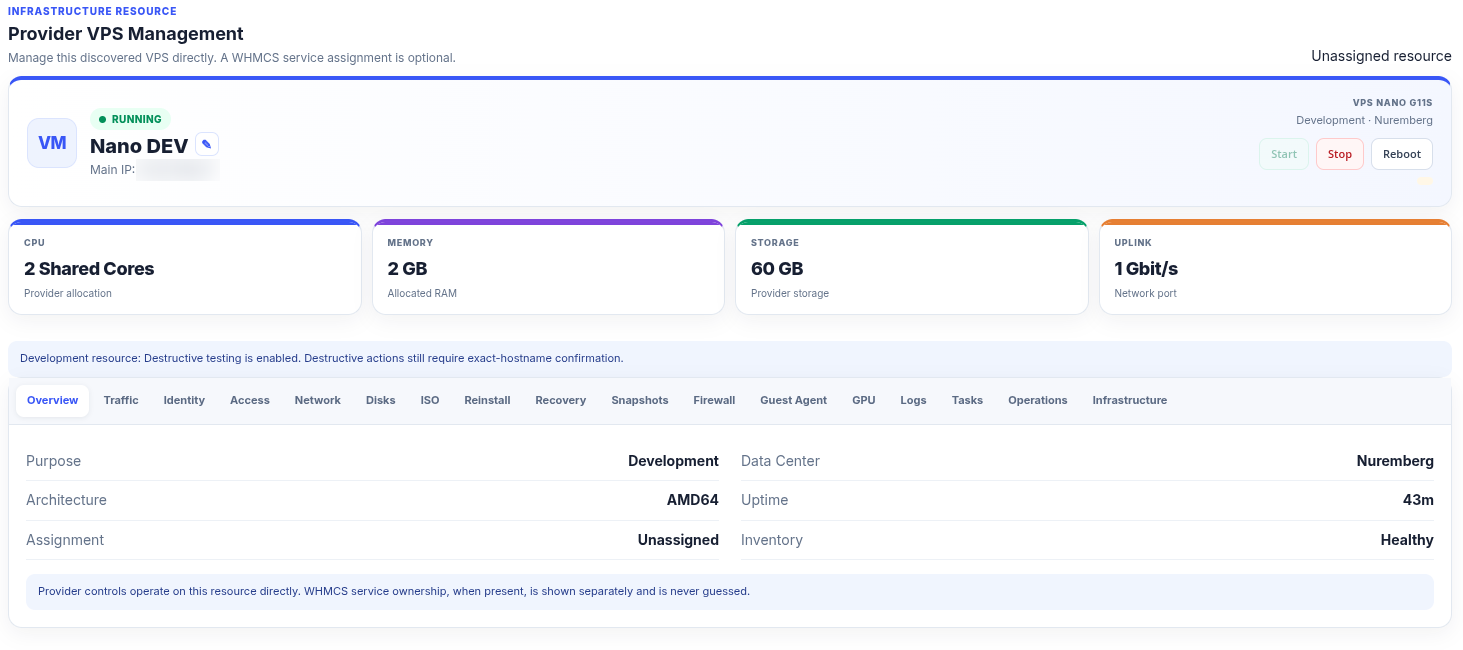
Provider VPS Management. Power controls and live resource allocation at the top, then the working tabs. Note the line at the bottom: provider controls act on the resource itself, and WHMCS service ownership is shown separately rather than inferred.
The tabs are not all equal. What a given connector can do is probed against each physical resource, not assumed from the provider. An operation that is genuinely unavailable says so up front instead of failing halfway through.
A WHMCS service assignment is optional here. Infrastructure you have not sold yet still needs managing, and there was no good reason to hide a machine until an invoice exists for it.
Monitoring next to the controls
A management layer that can only create and delete servers is a provisioning button with a login screen. Most of the work of running VPS infrastructure happens after provisioning, so the operational data sits with the controls.
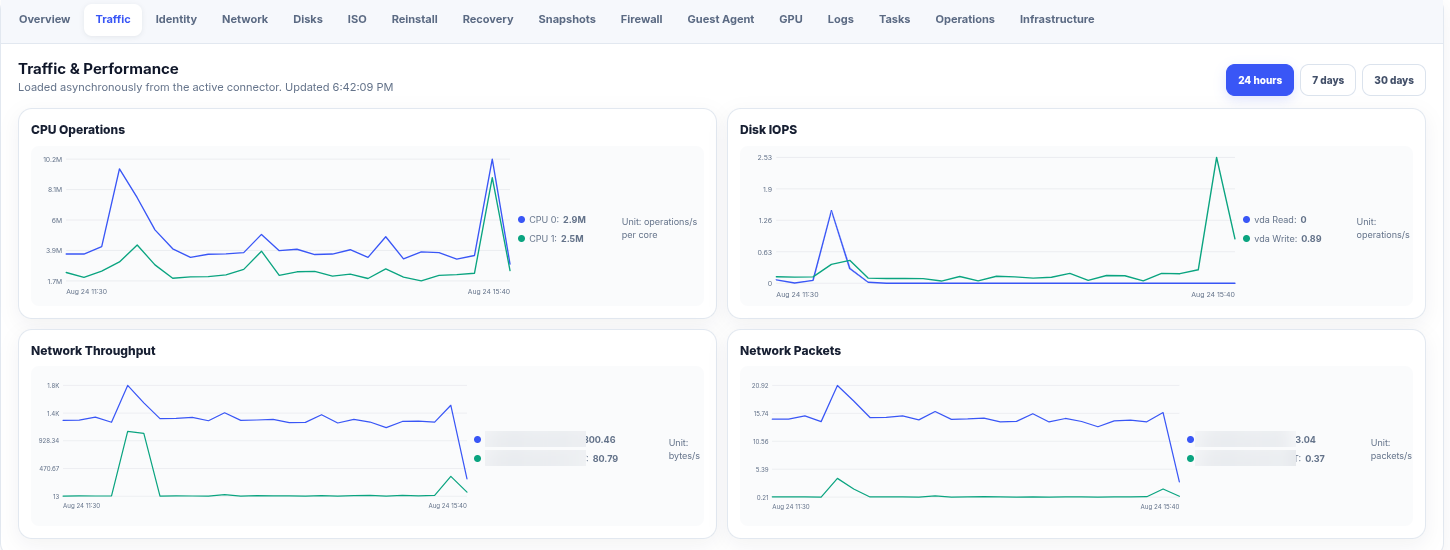
Traffic and performance over 24 hours, 7 days or 30 days. CPU is broken out per core, disk IOPS per device, and throughput and packet counts per interface. Loaded asynchronously, so a slow provider metrics API does not hold up the rest of the page.
This is the view that answers the question you actually get asked, which is some version of "the site is slow, is it the server?". Having it next to the power controls and the service record means answering it does not take three browser tabs.
Names, addresses and the rest of the lifecycle
Every server has two names. There is the label a human uses, and there is the hostname the machine and the provider know it by. Conflating them is how a friendly rename quietly breaks reverse DNS and mail delivery.
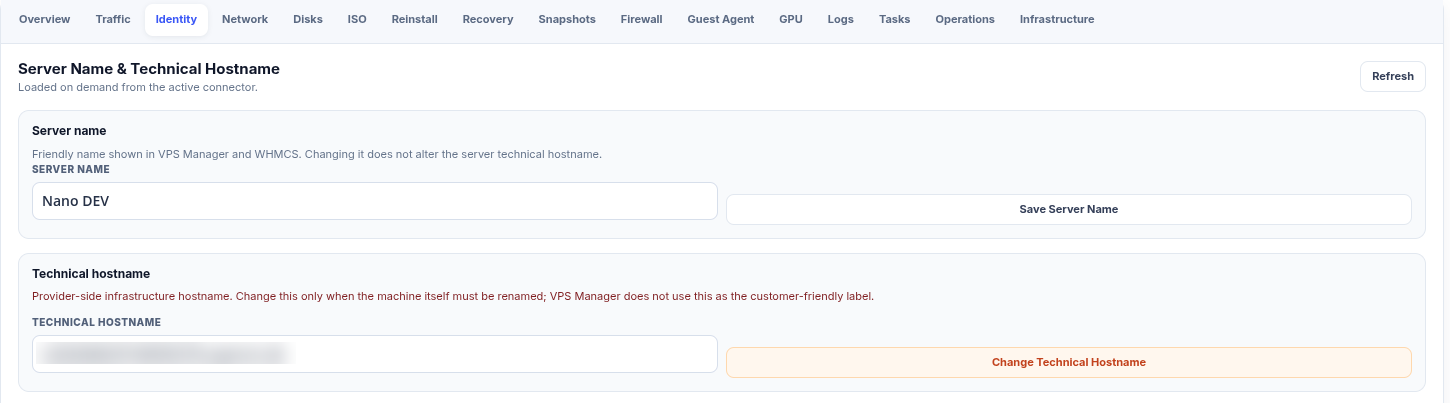
Server name and technical hostname are edited separately, and changing one does not change the other. The friendly name is what appears in VPS Manager and WHMCS; the technical hostname is only changed when the machine itself is genuinely being renamed.
Networking follows the same idea. IPv4 reverse DNS is set per interface. The routed IPv6 subnet is presented as a subnet: pick an address out of the assigned /64 and give it its own reverse record.
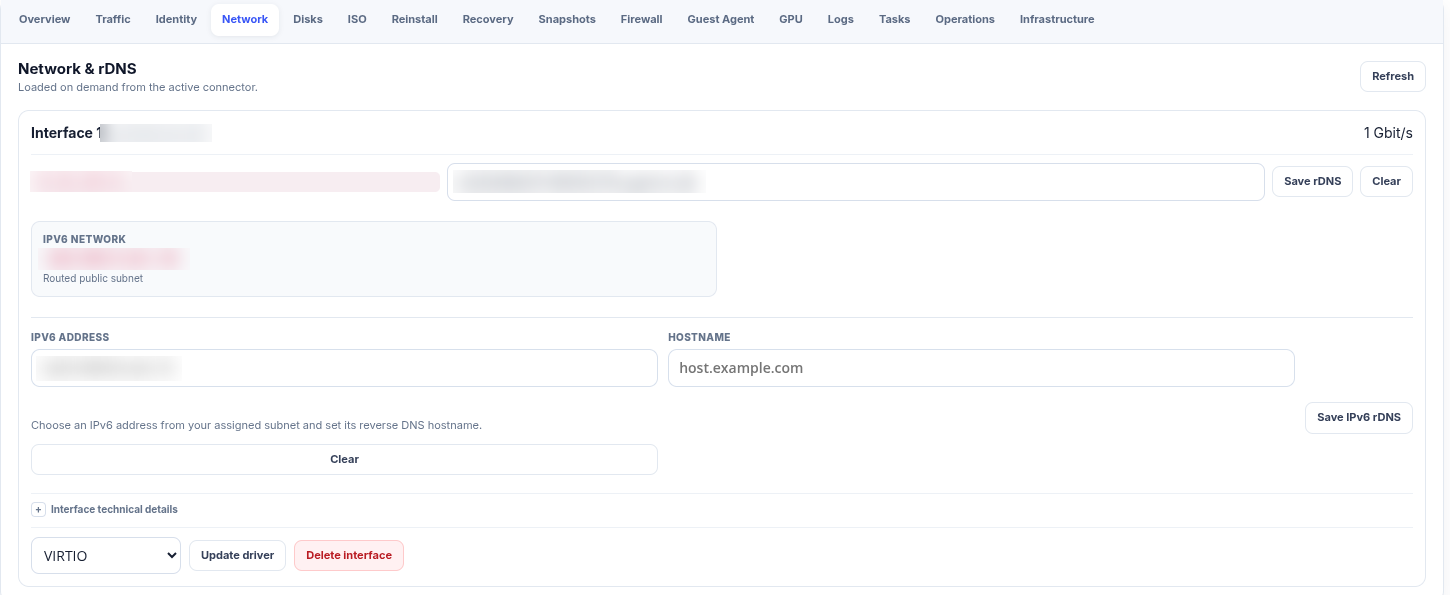
Network and rDNS. IPv4 reverse DNS on the left, the routed public IPv6 subnet below it, and per-address IPv6 reverse records underneath. The addresses and the reverse hostname are masked; the fields are ordinary text inputs.
Lifecycle operations sit in the same interface, with the safety rails you would want on them. An OS reinstall lists the provider's images with the flavor identifier attached. The exact image requested can then be checked afterwards in the audit trail, and the selection is verified against the provider once more immediately before dispatch.
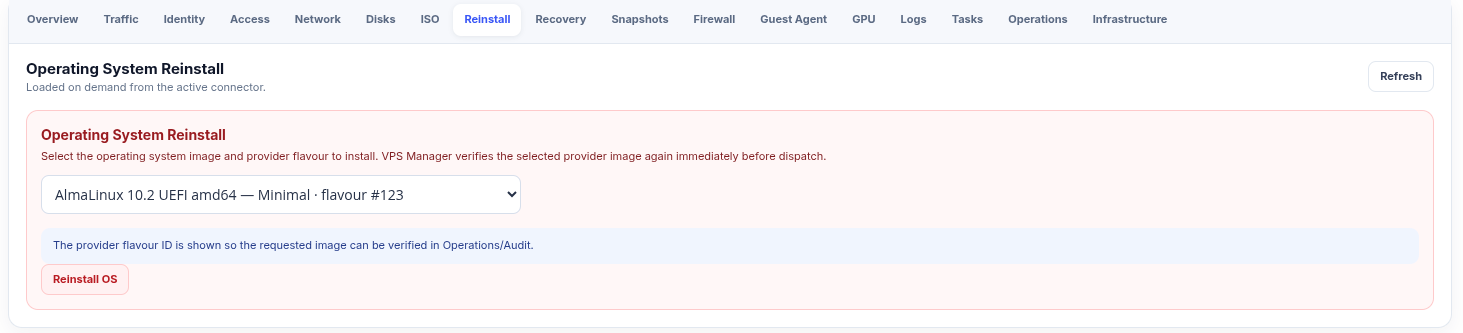
OS reinstall against the provider's own image catalog. The flavor ID is shown deliberately so the image that was actually requested can be verified later. Destructive actions require the exact hostname to be typed back.
Root access works the same way next door. A root password can be set through the provider API, and VPS Manager never writes the plaintext value into its own operations or audit records. Provider operations, tasks and logs are recorded per resource from the moment it is discovered, so an audit trail exists before a WHMCS service does.
What we are working on next
The gap between all of that and a release is provisioning. Everything above manages
infrastructure that already exists. The work in progress is the WHMCS CreateAccount path that
creates it.
That means joining automatic inventory allocation to the operating system install, generating initial credentials and delivering them to the customer securely, verifying the finished service before handover, and handling failure properly. The last one is why it is taking a while. A provisioning run that dies halfway has to leave a quarantined resource and a clear record, not a half-built server that looks available and a customer holding an invoice.
Alongside that: licensing and ionCube packaging, validating the white-label customer area against real orders, localization and interface polish, and the general hardening that has to happen before anything can sensibly be called a release candidate.
None of it is done. We are calling this pre-RC because that is what it is.
Where this leaves things
There is still no release date, no pricing and nothing to buy. The earlier disclaimer stands in full: the connector in these screenshots is ours, and netcup is not involved in this project and does not endorse, support or supply it.
If you run WHMCS and manage VPS inventory alongside it, reconciliation is the part we would most like to be wrong about, because that is where everyone's setup differs. If yours works differently, tell us.
We will share more as VPS Manager moves through the final provisioning and release-candidate stages.